Bluetooth Tutorial 1 - Thermometer
Introduction
PSoC Setup
- Connect Header J2, pin P3[0] Header J3, pin VREF with a jumper wire.
PSoC Creator
Open PSoC Creator and selct file –> Code Example… from the top menu.
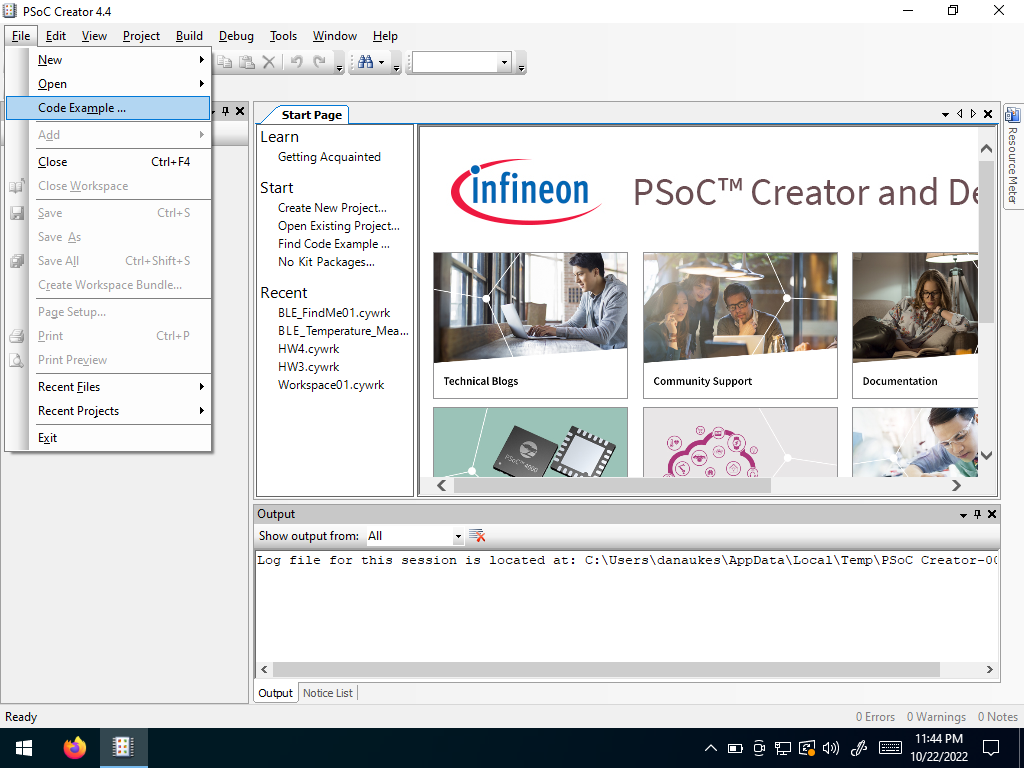 Open a Code Example
Search for “BLE”. Select “BLE_Temperature_measurement”
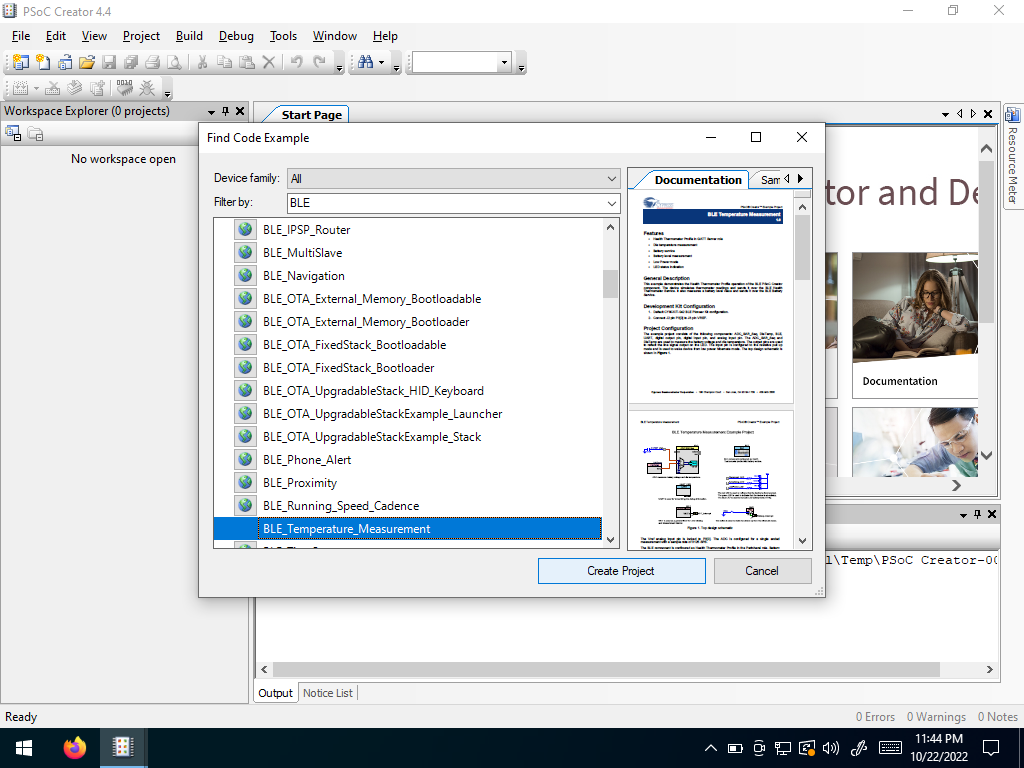 Search for “BLE”
Click the World Icon
 to download the code example
Create a new project using the defaults
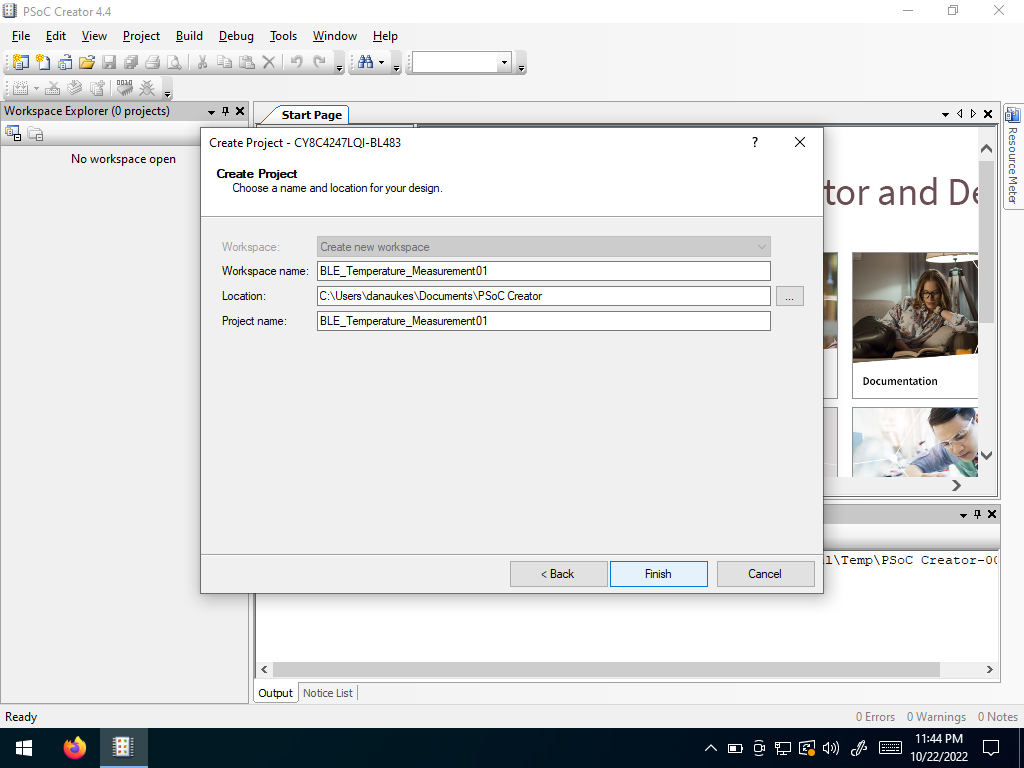 Create a new project
A .pdf tutorial will open that you can follow along with, in conjunction with this tutorial.
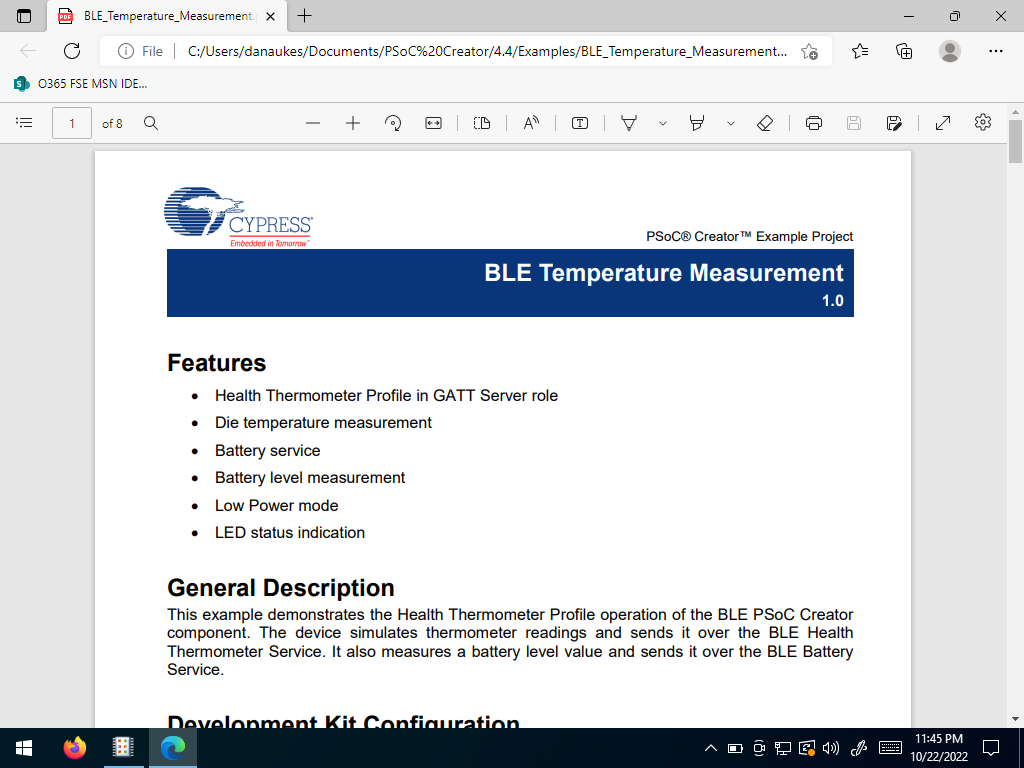 A pdf tutorial
In the project workspace, right click on the project
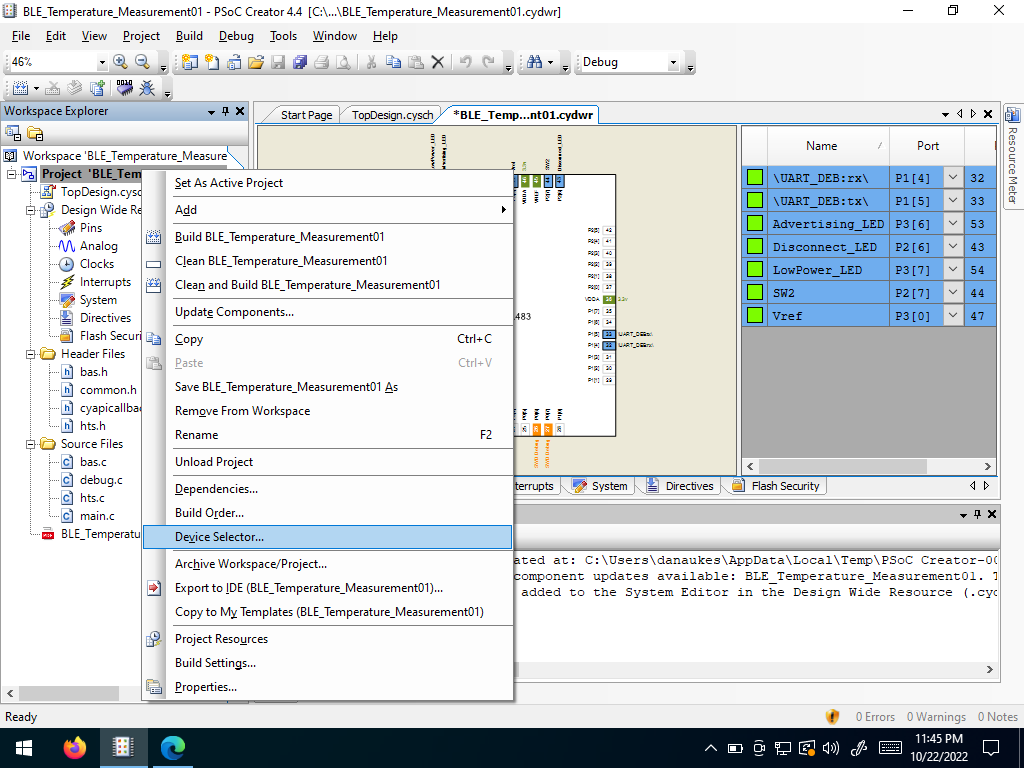 Open the Device Selector
Select the BLE module plugged into your Pioneer Board
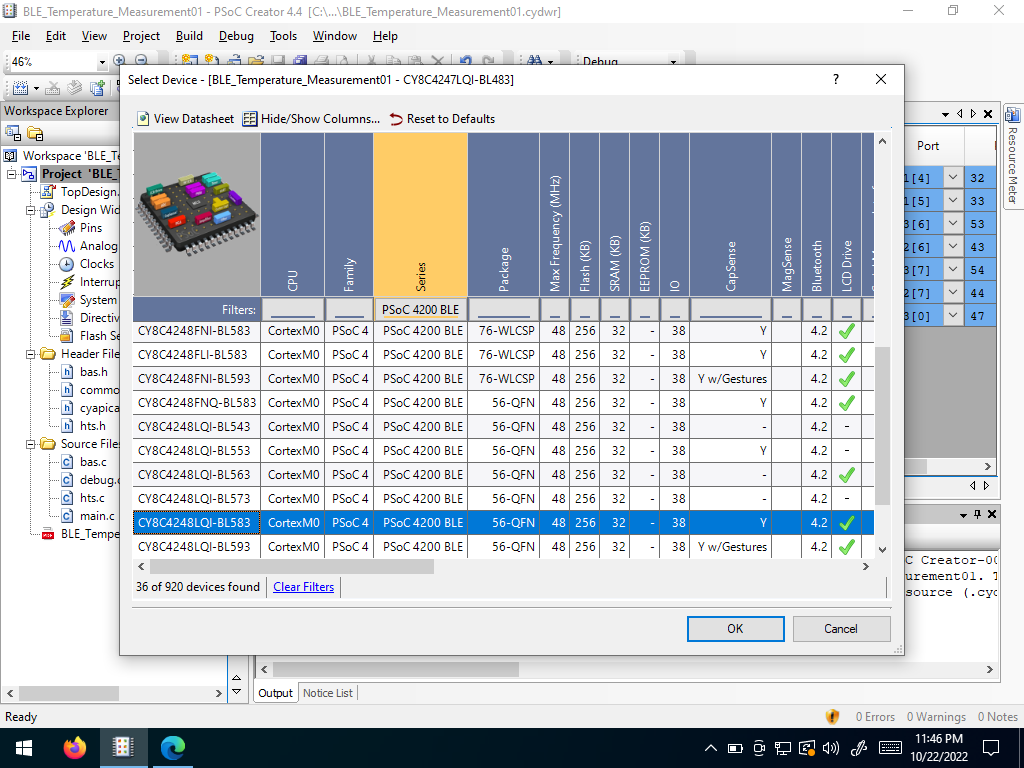 Select your BLE module
The project will update, mapped to your selected microcontroller
In your top design, double-click on the BLE module, go to GAP Settings, and check ```Silicon generated “Company assigned” part of the address" to make your BLE UUID unique.``
Download your project to the PSoC
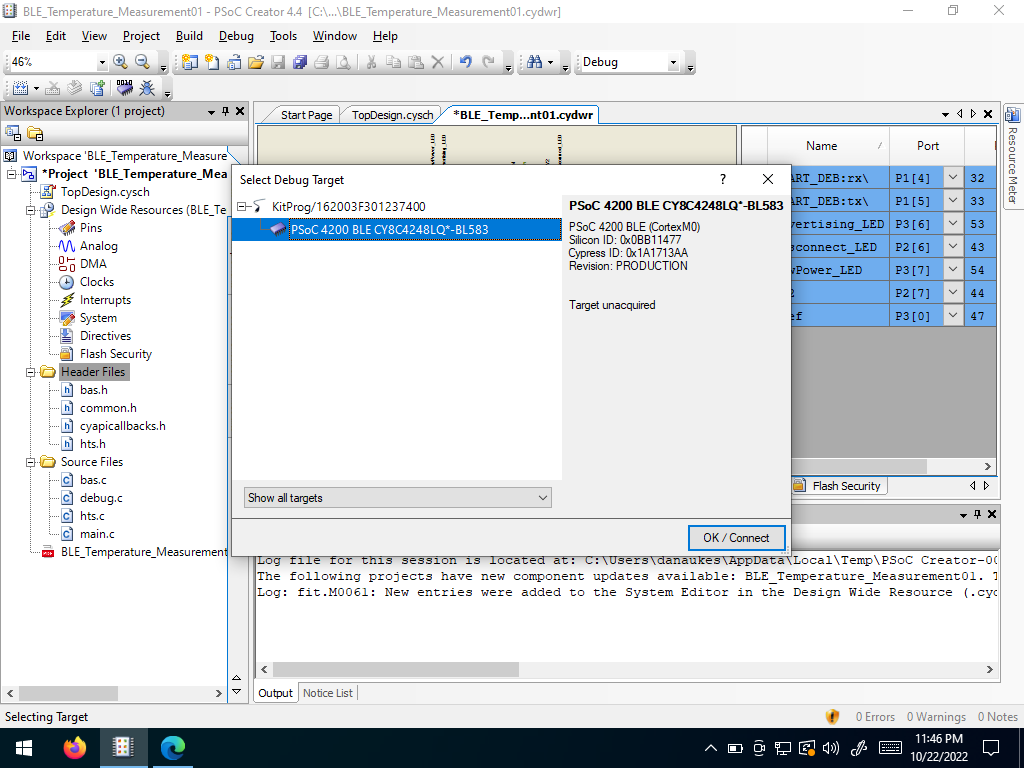 Download your project
CySmart PC App
Open the CySmart app.
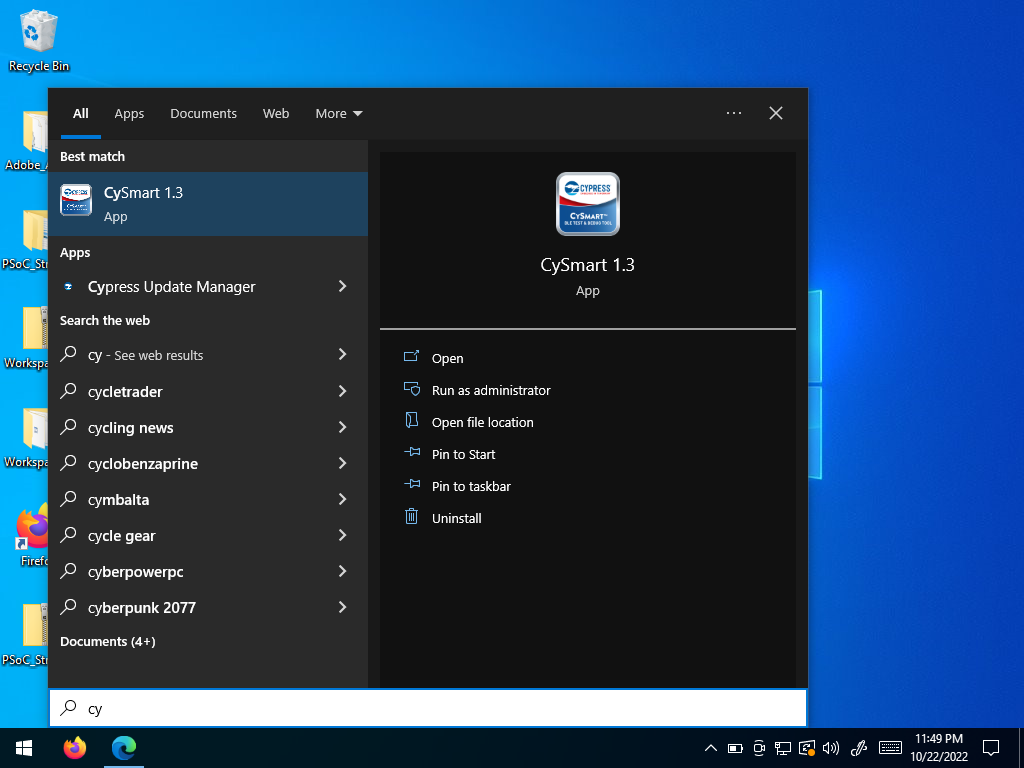 Open CySmart
Plug in the BLE Dongle
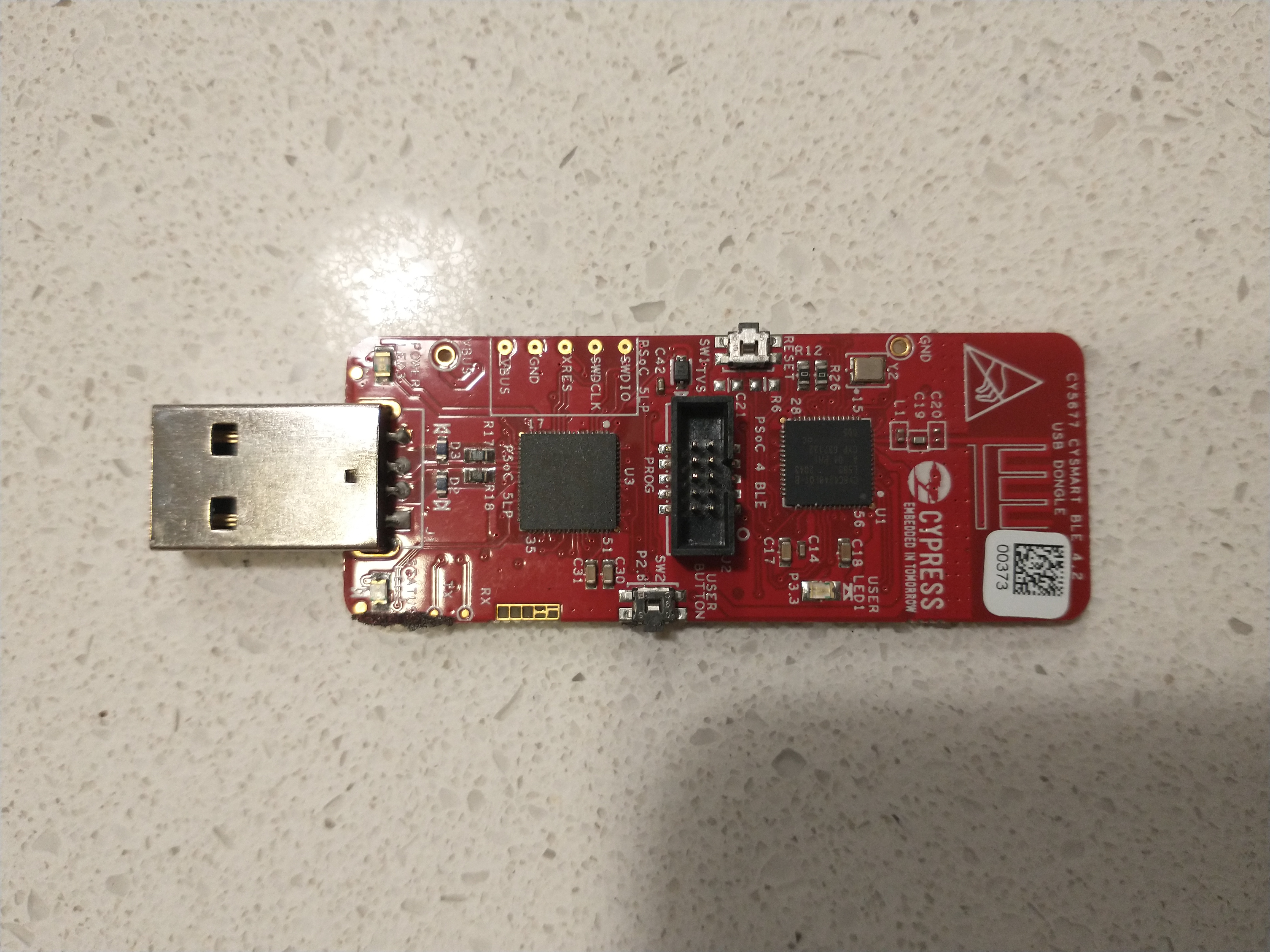 BLE Dongle
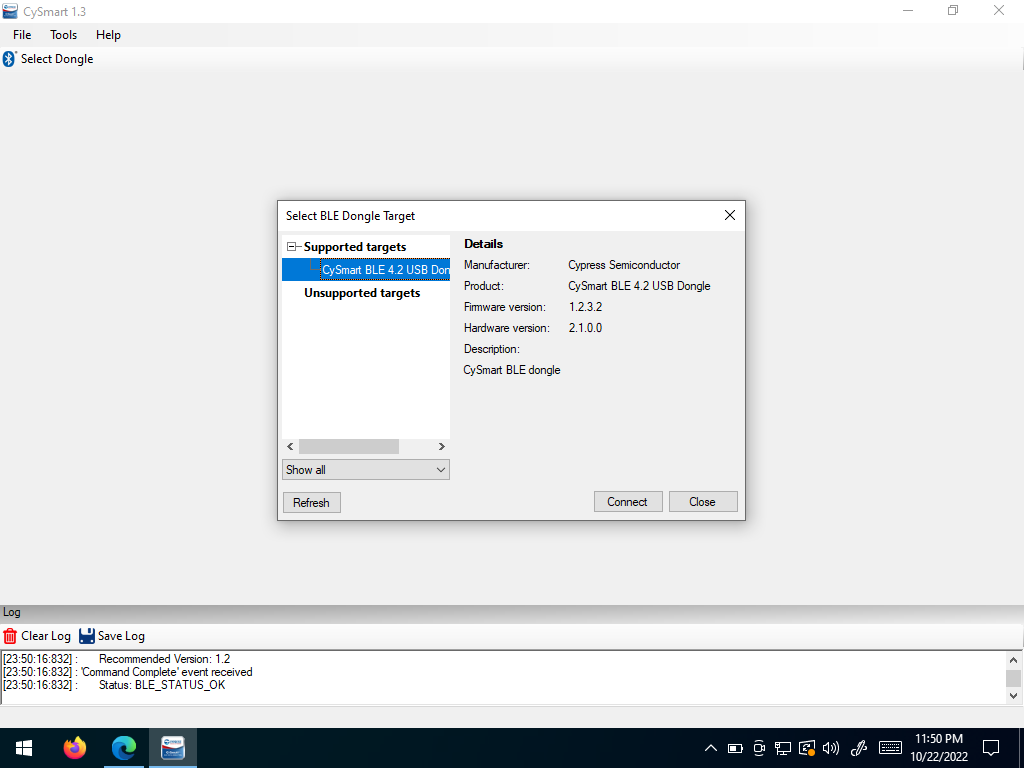 Select the CySmart BLE Dongle
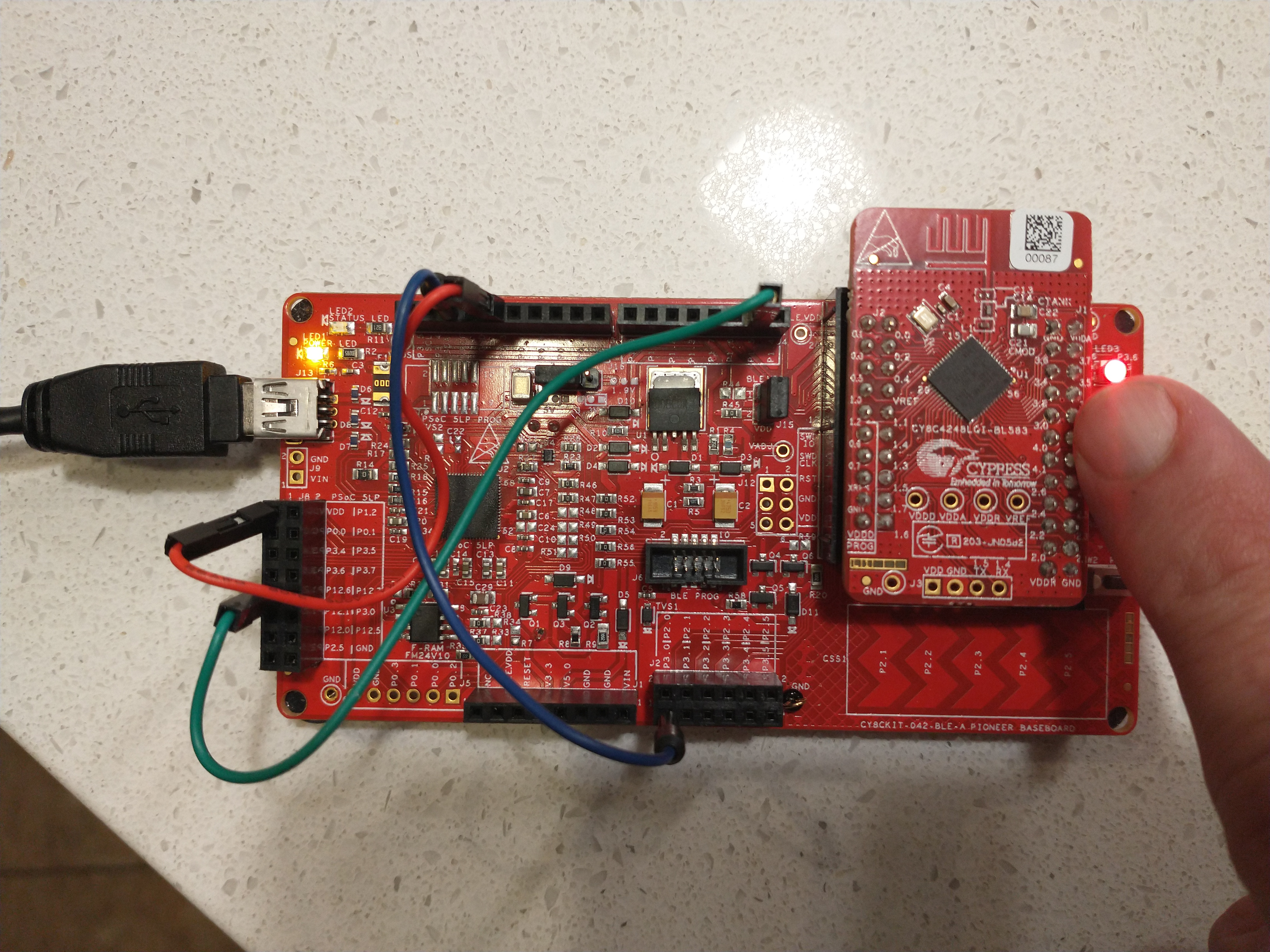 Press the Reset Button
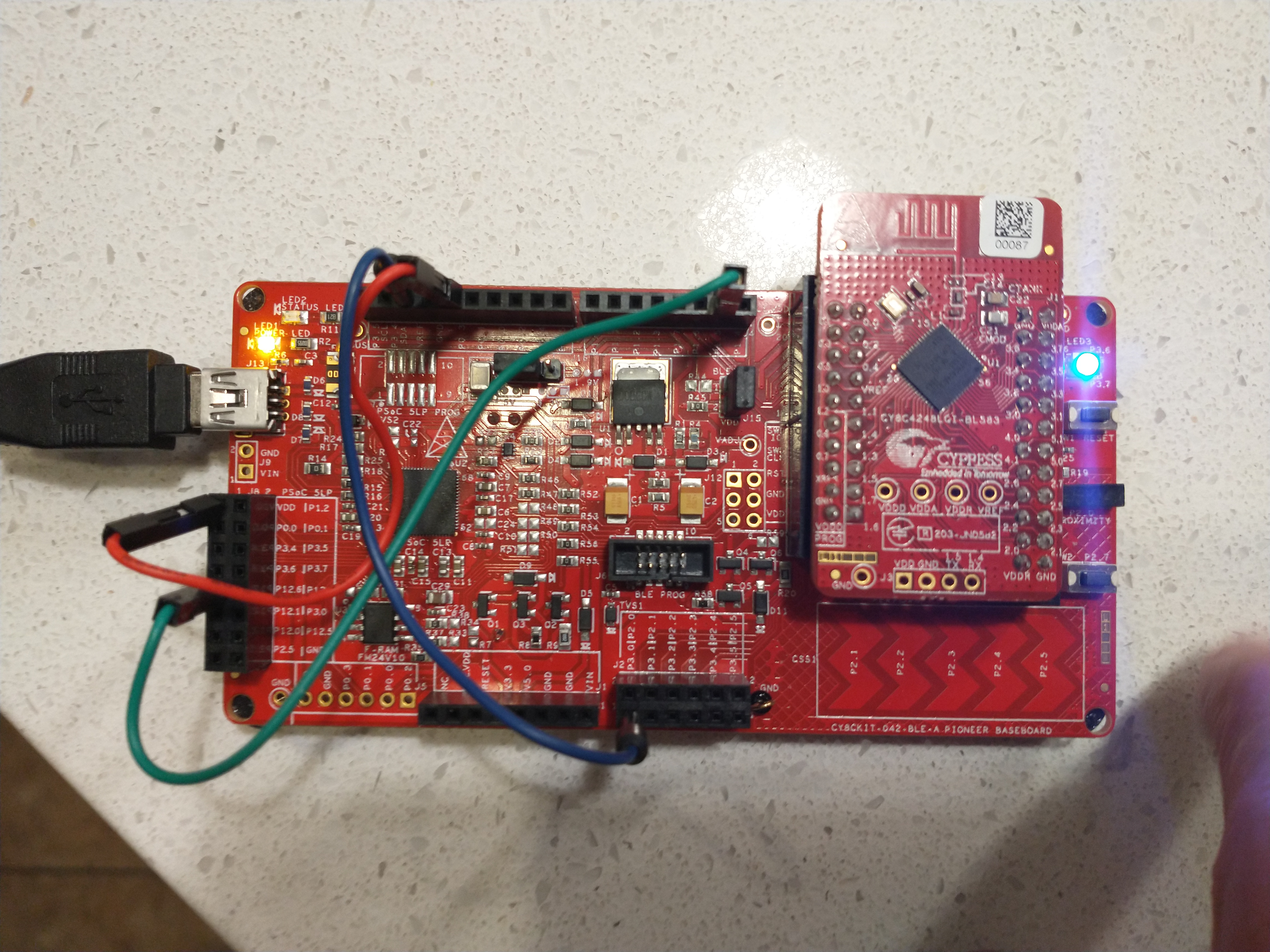 The LED will rapidly flash blue
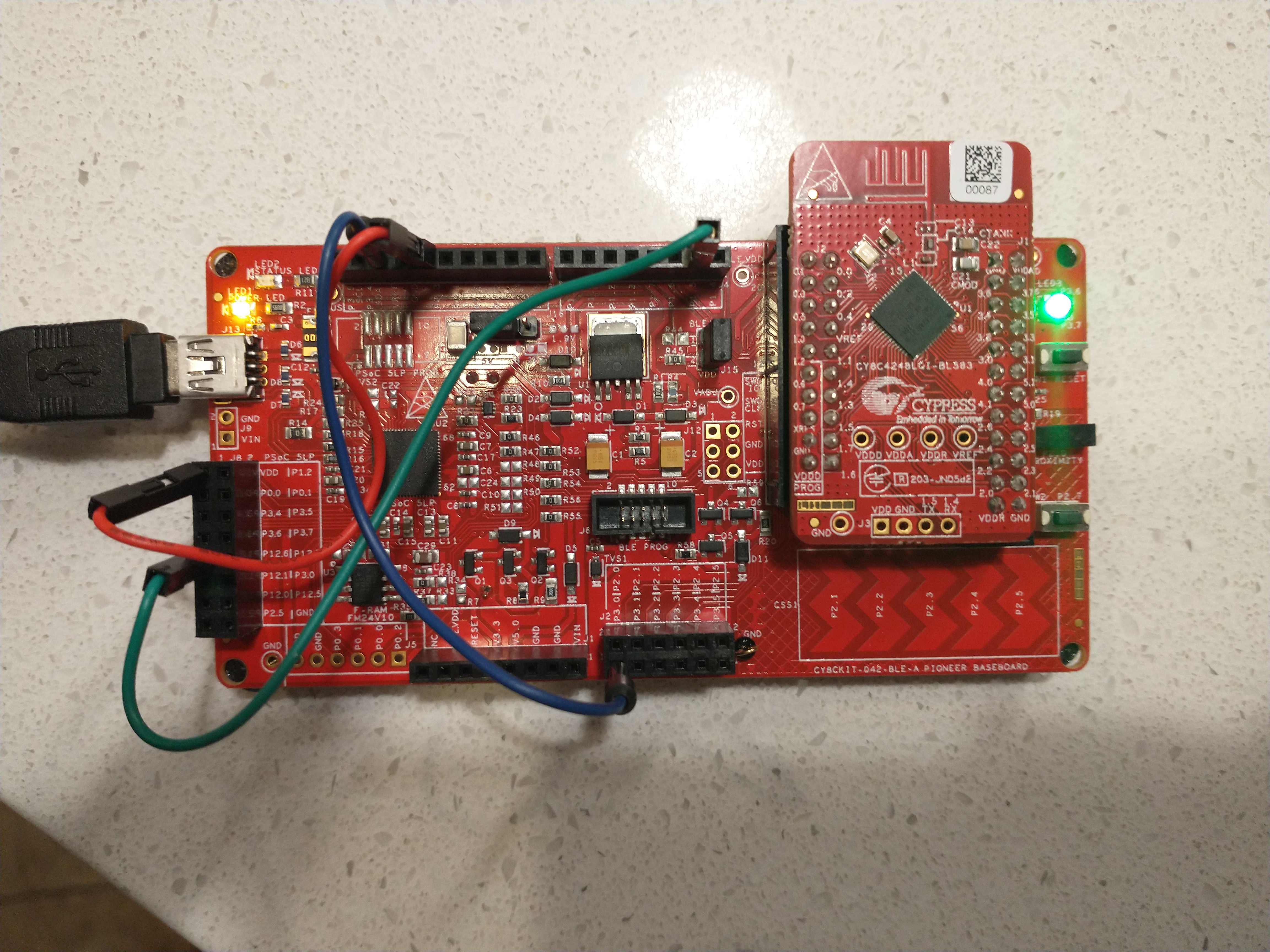 The LED will remain on green
Select Start Scan.
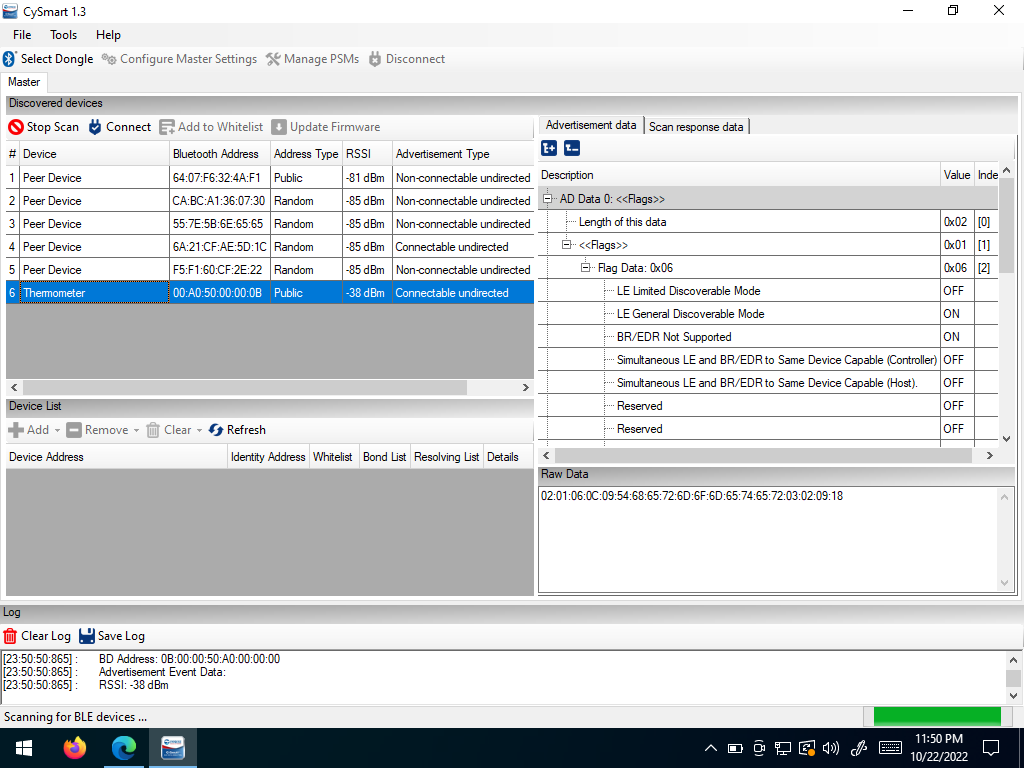 Select Start Scan
Select the closest “Thermometer” Item and then click “Connect”
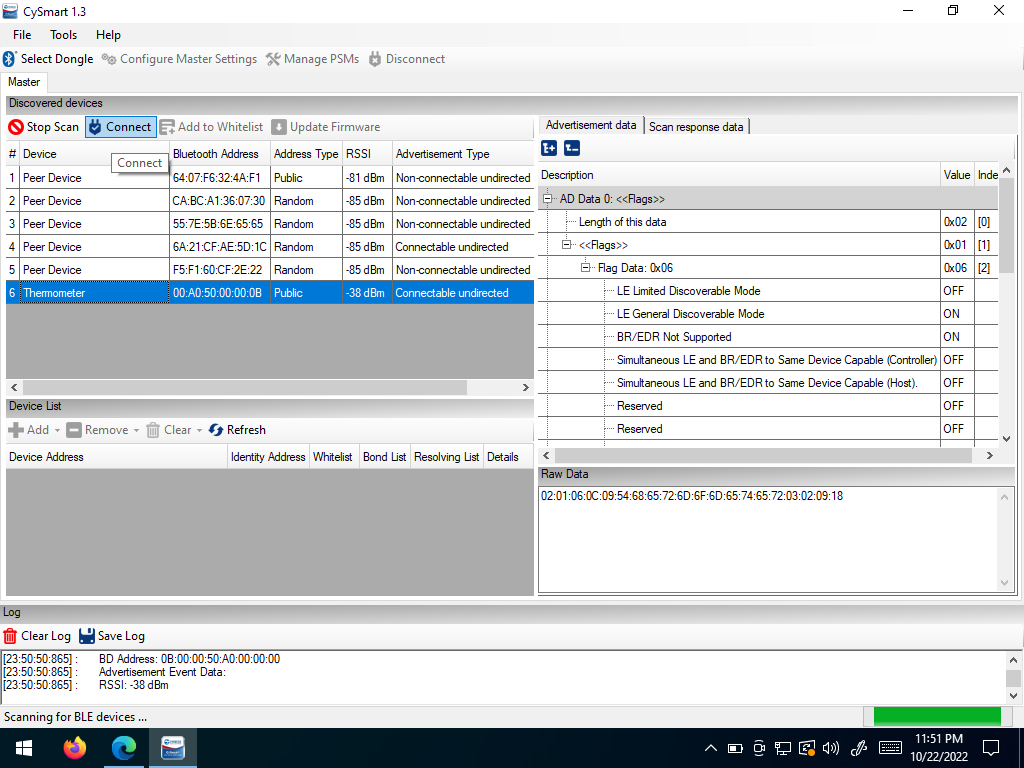 Connect
Select “Discover all Attributes”
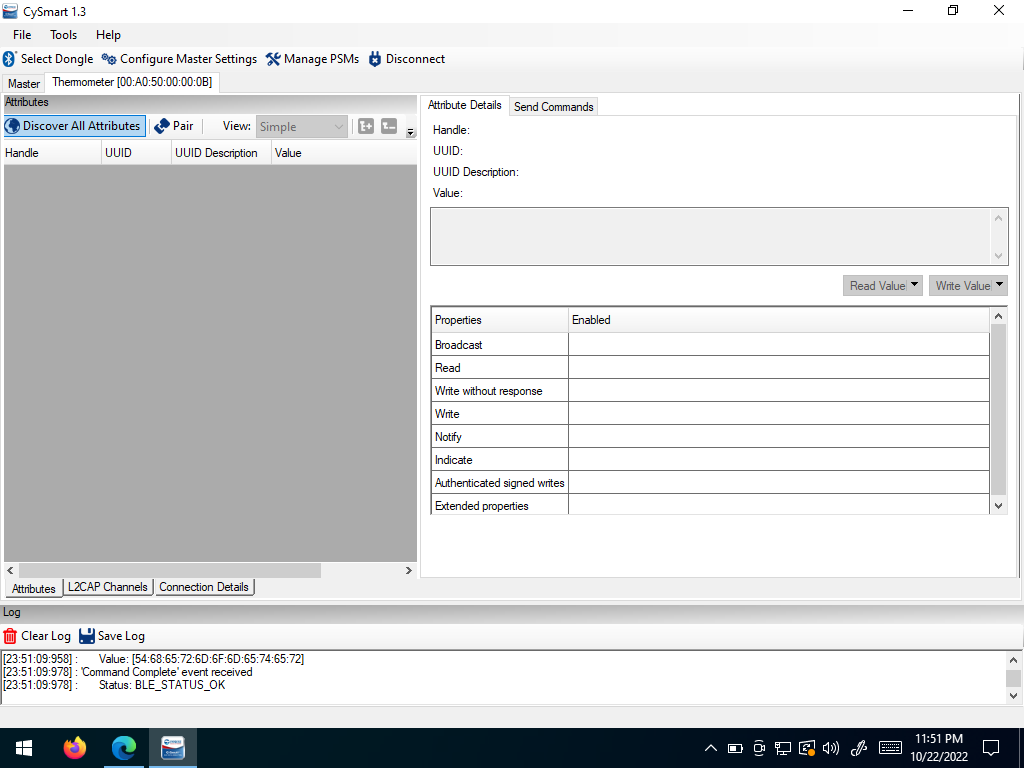 Discover all Attributes
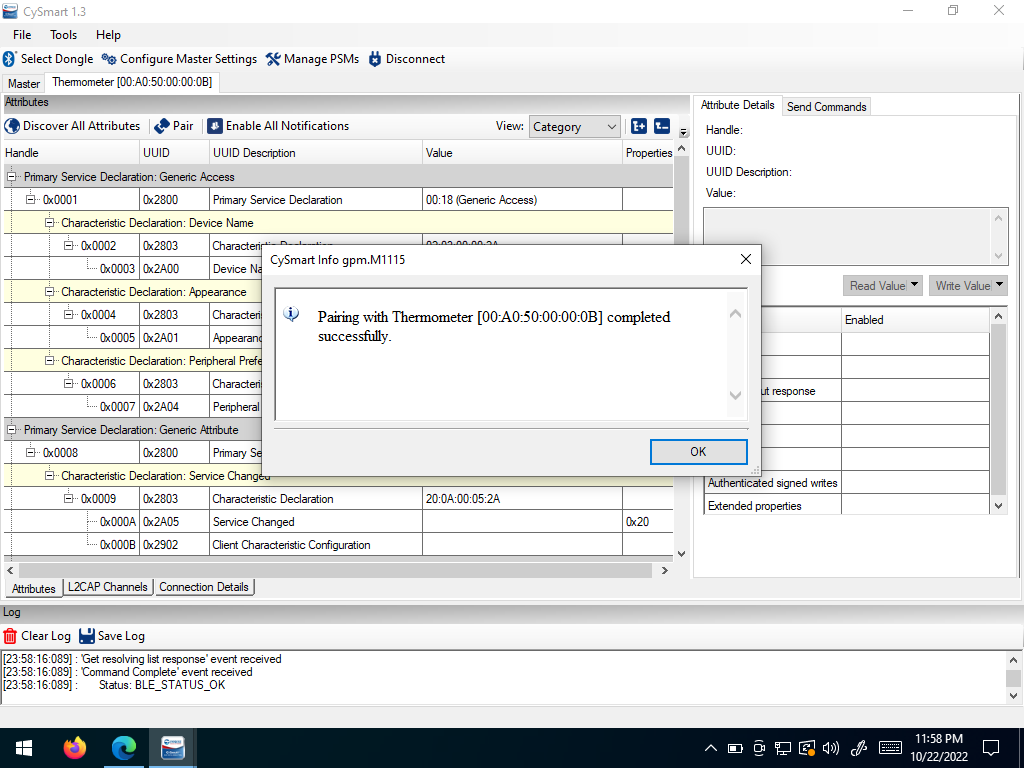
Select “Pair” to pair with the device. A dialog box will pop up notifying you if it is successful.
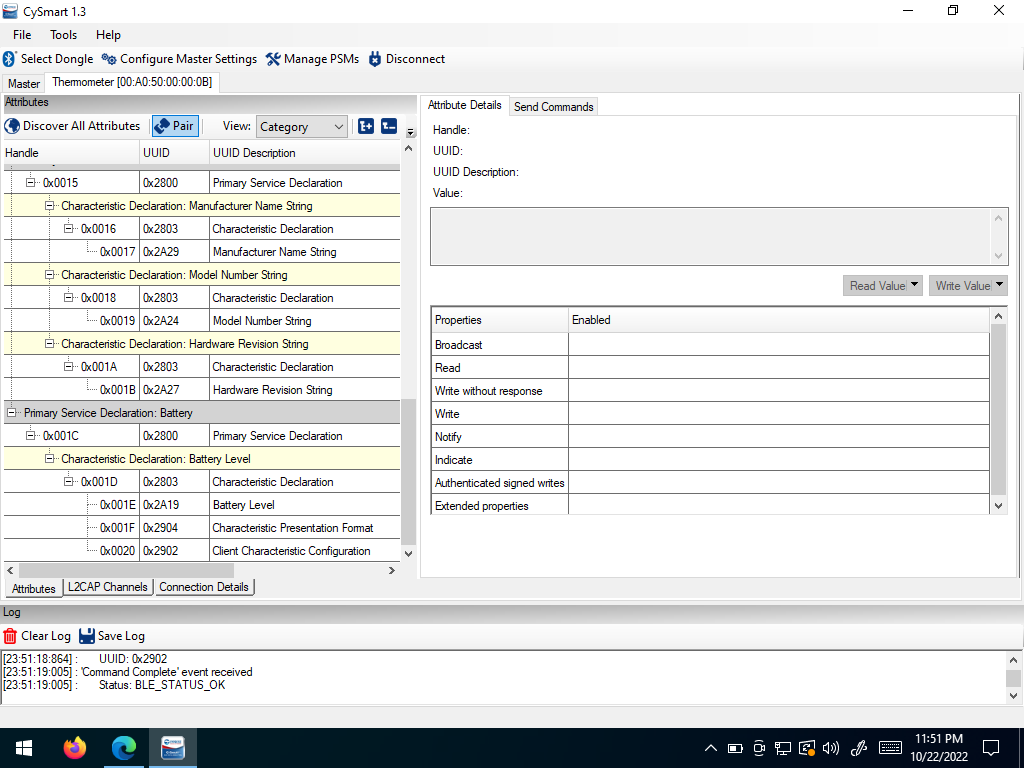 Pair with the Device
Select “Enable all Notifications” to receive updates from the BLE device. You may need to resize the attributes window to see the icon.
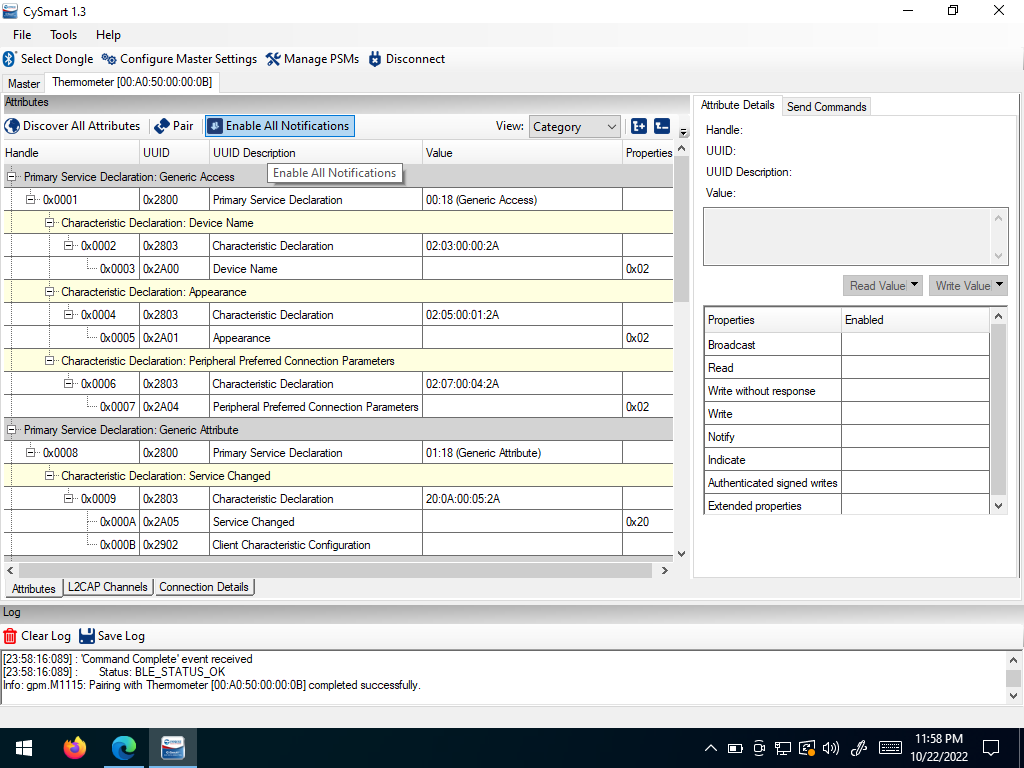 Enable all Notifications
Observe the values being received in the status window at the bottom. The address of some of these messages should correspond with the “Temperature Measurement” address listed in the Attributes list above.
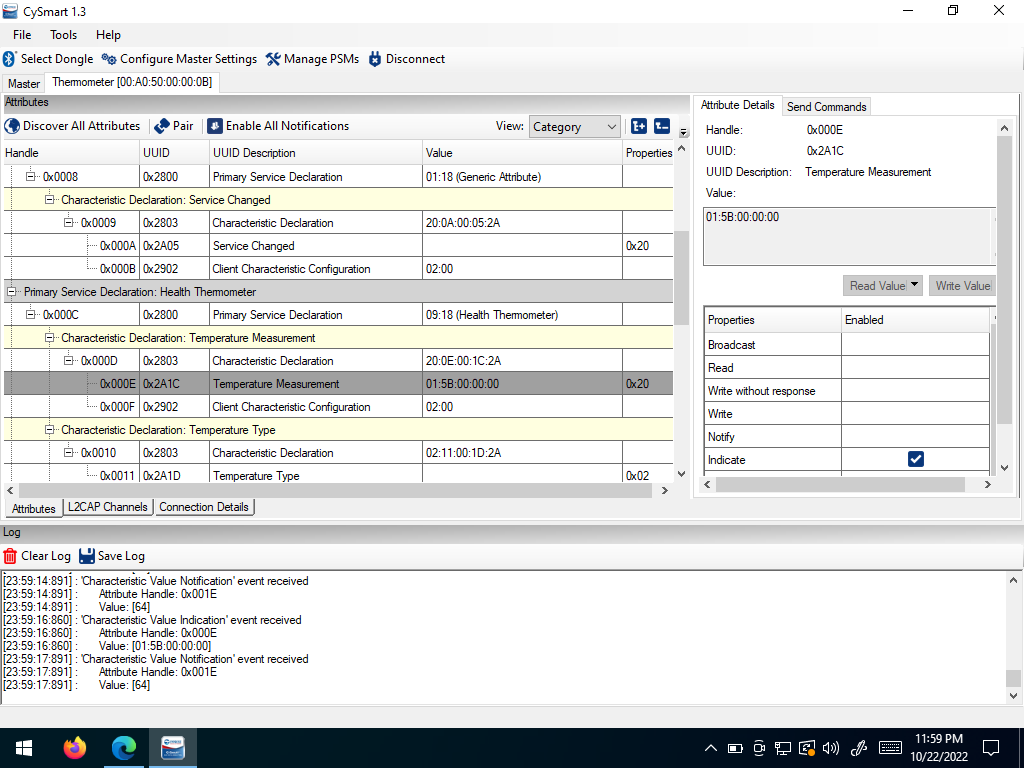 Receiving Messages
Phone App
Open the LightBlue App in your phone
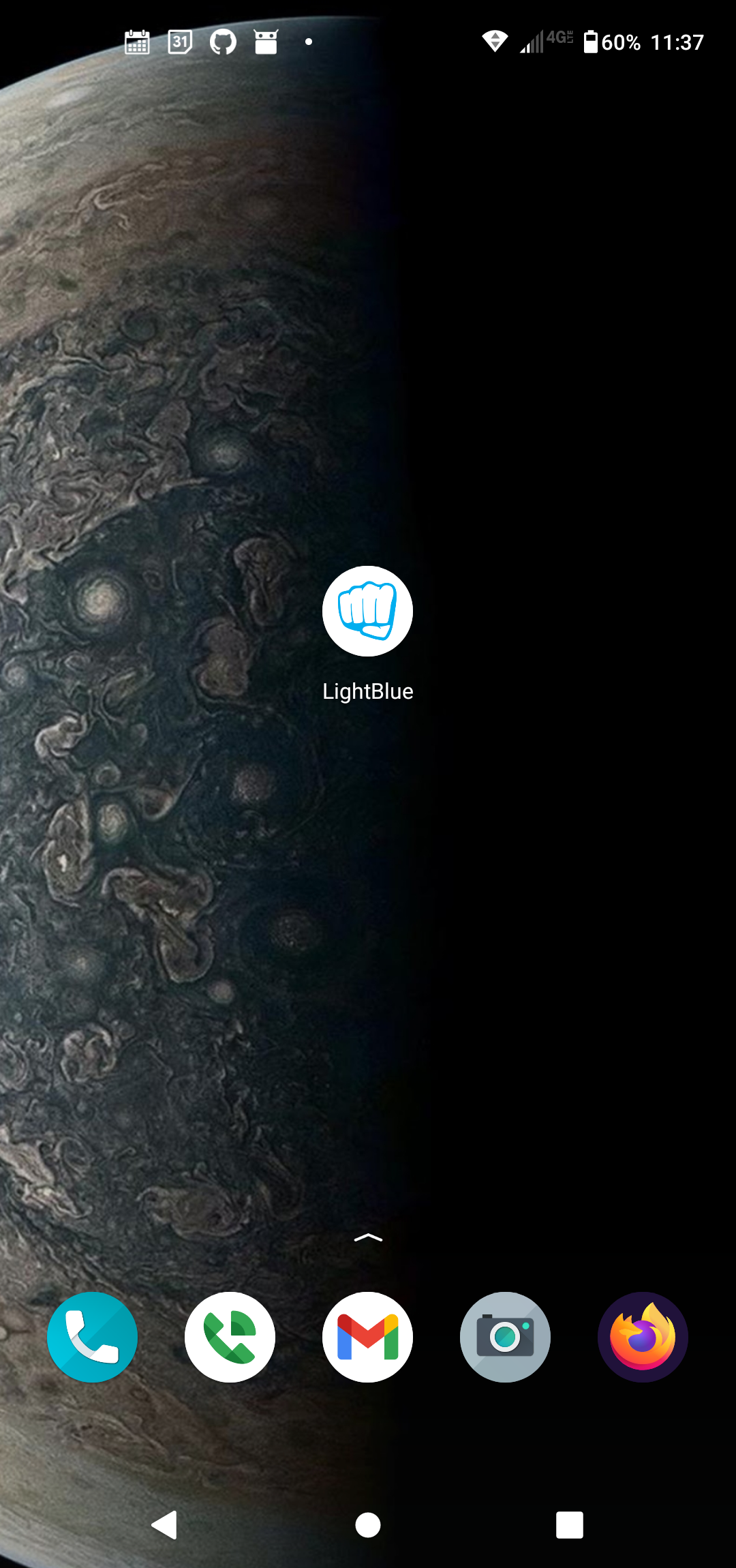 Select the LightBlue AppPress the Reset ButtonThe LED will rapidly flash blueThe LED will remain on green
Select the “Thermometer” device with the strongest signal. That is most likely the closest device. The device screen will open.
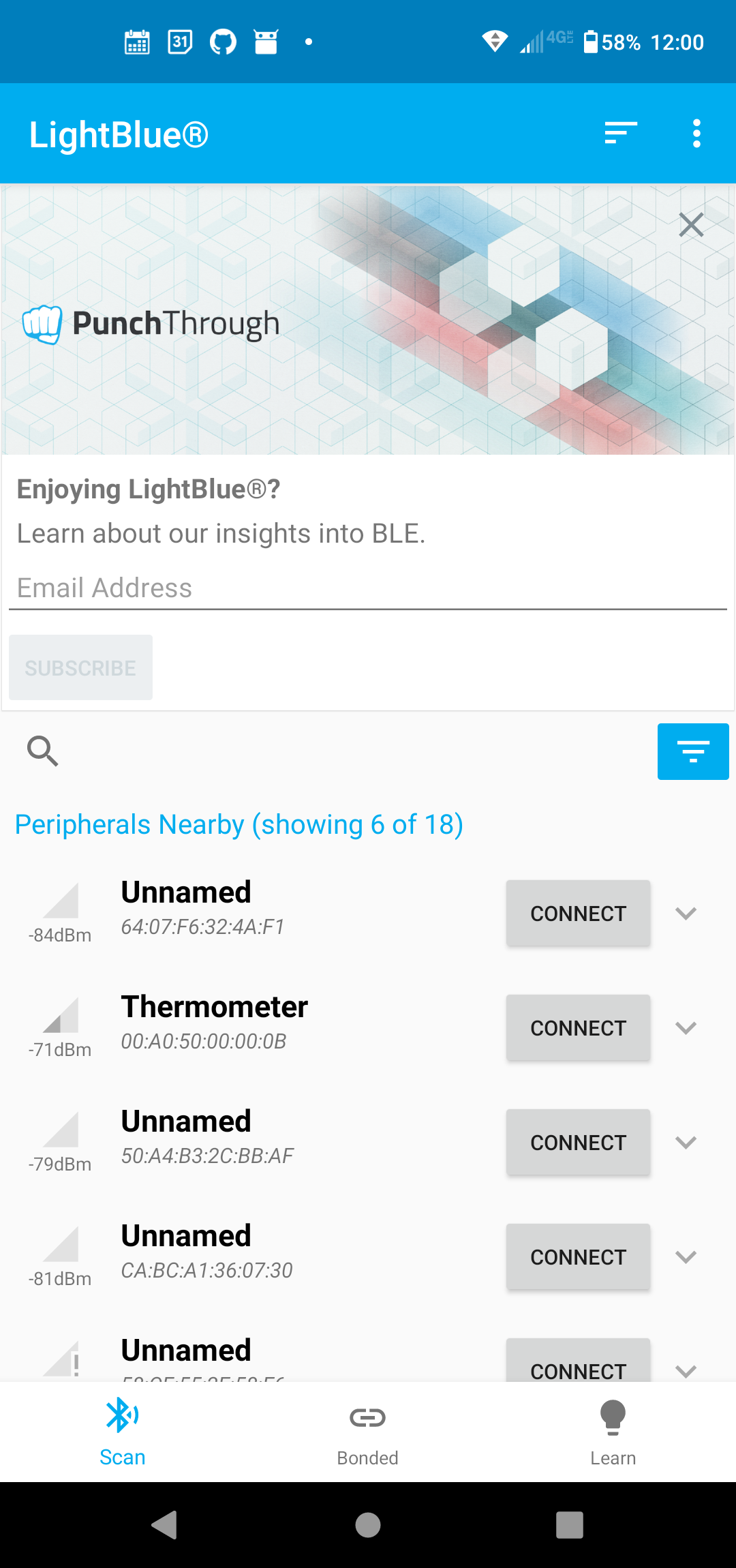 Select the Thermometer
A notification dialog should pop up asking if you would like to pair with the device. Select “pair and connect”
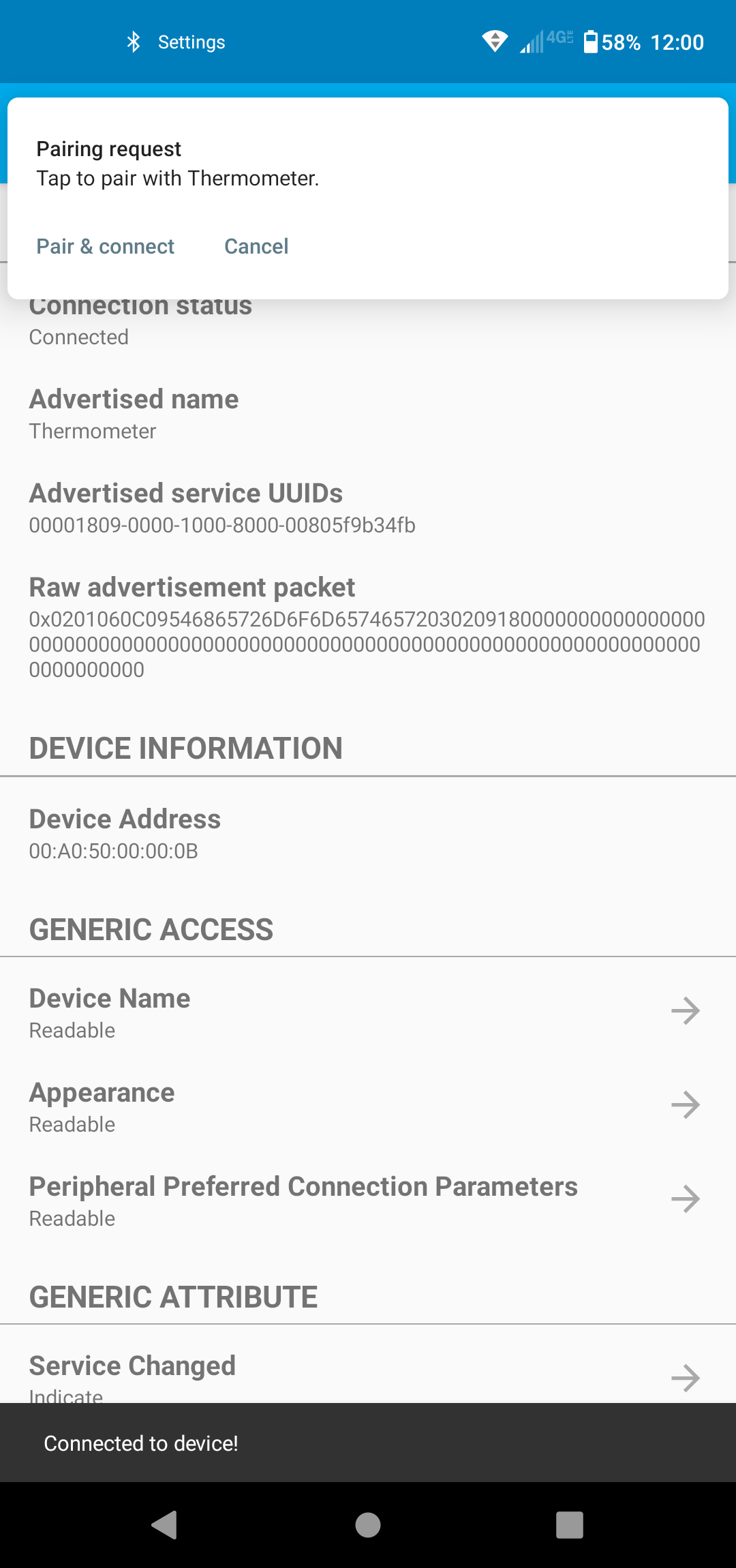 Select Pair and Connect
Confirm to Pair the Device
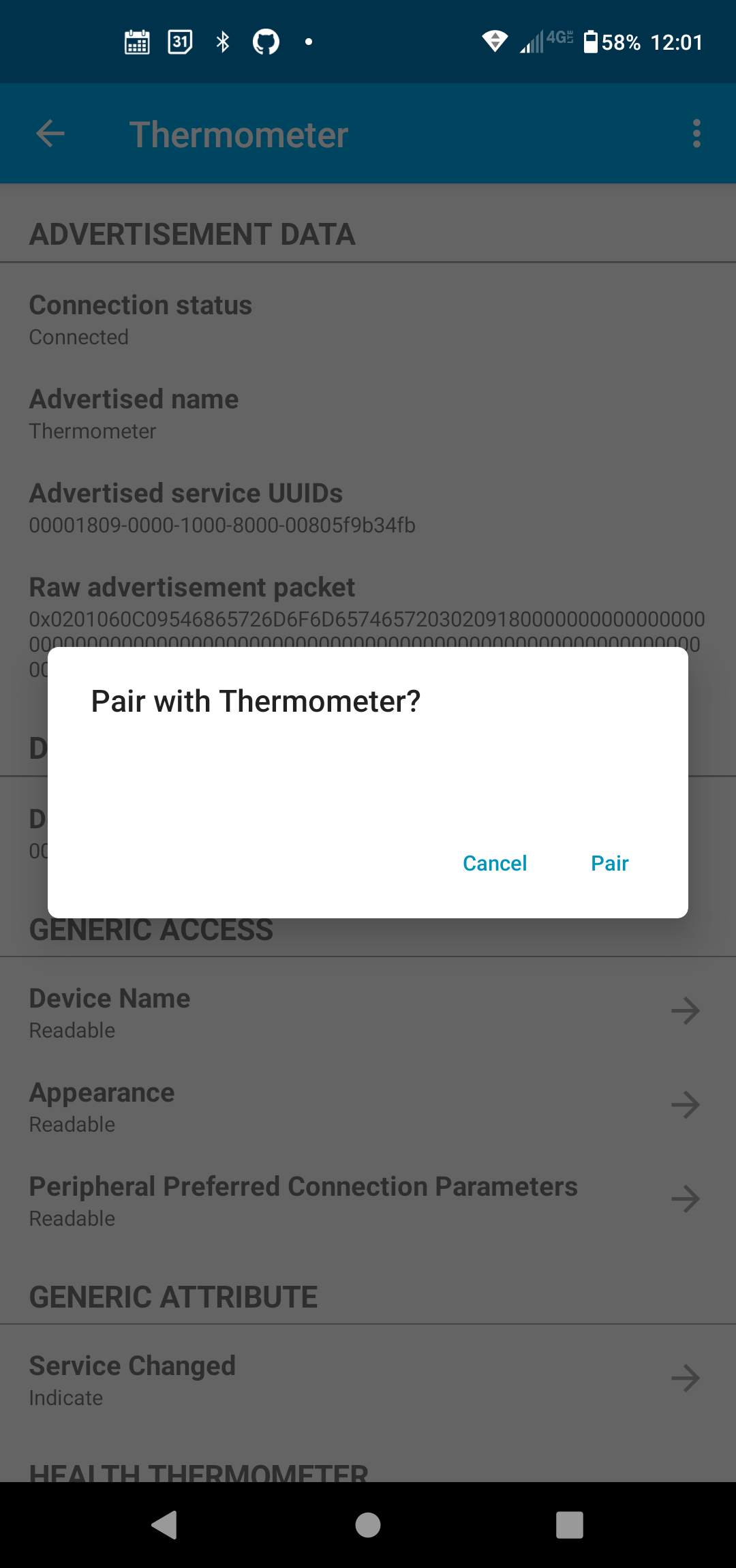 Confirm
Select the “Temperature Measurement” Item
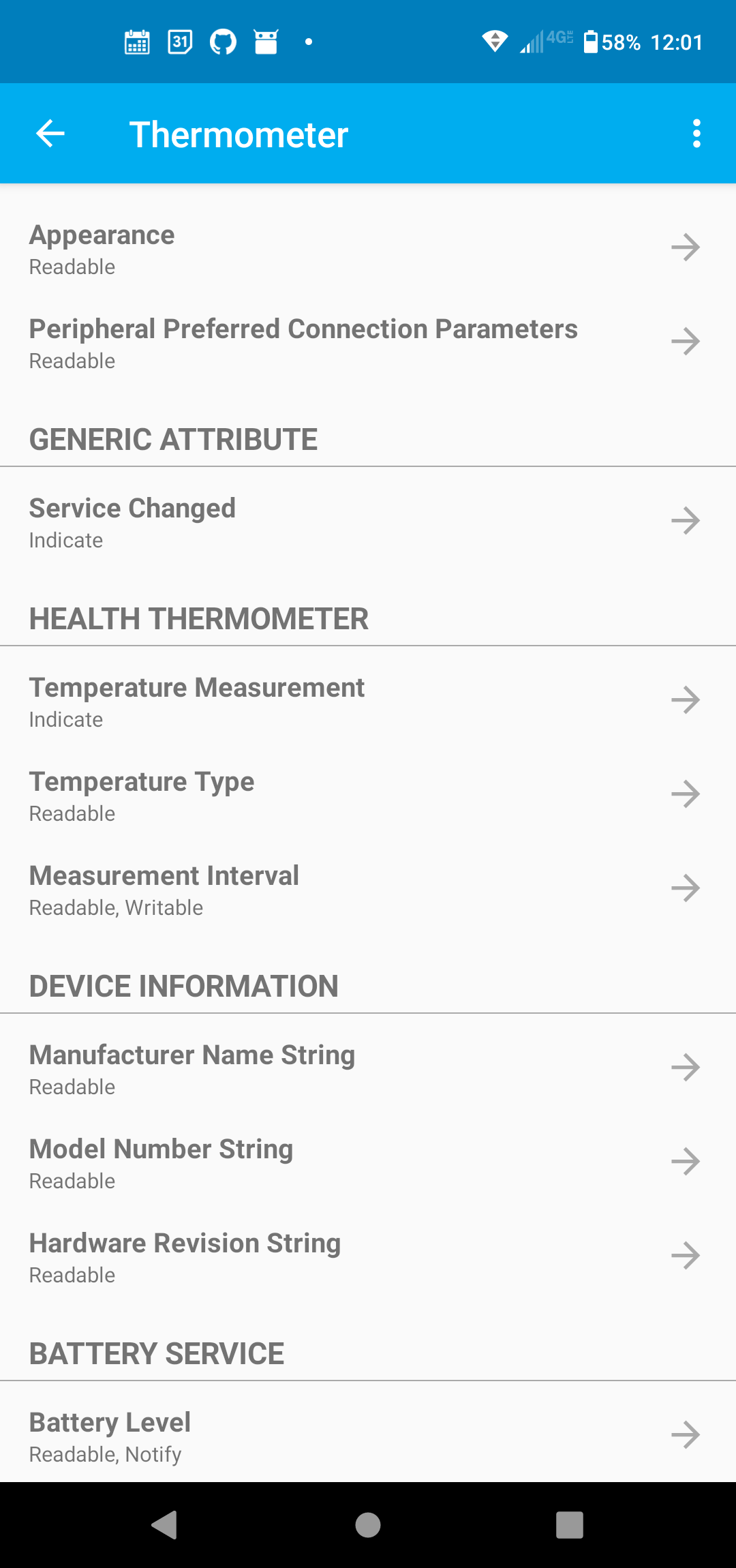 Select Temperature Measurement
Click Subscribe
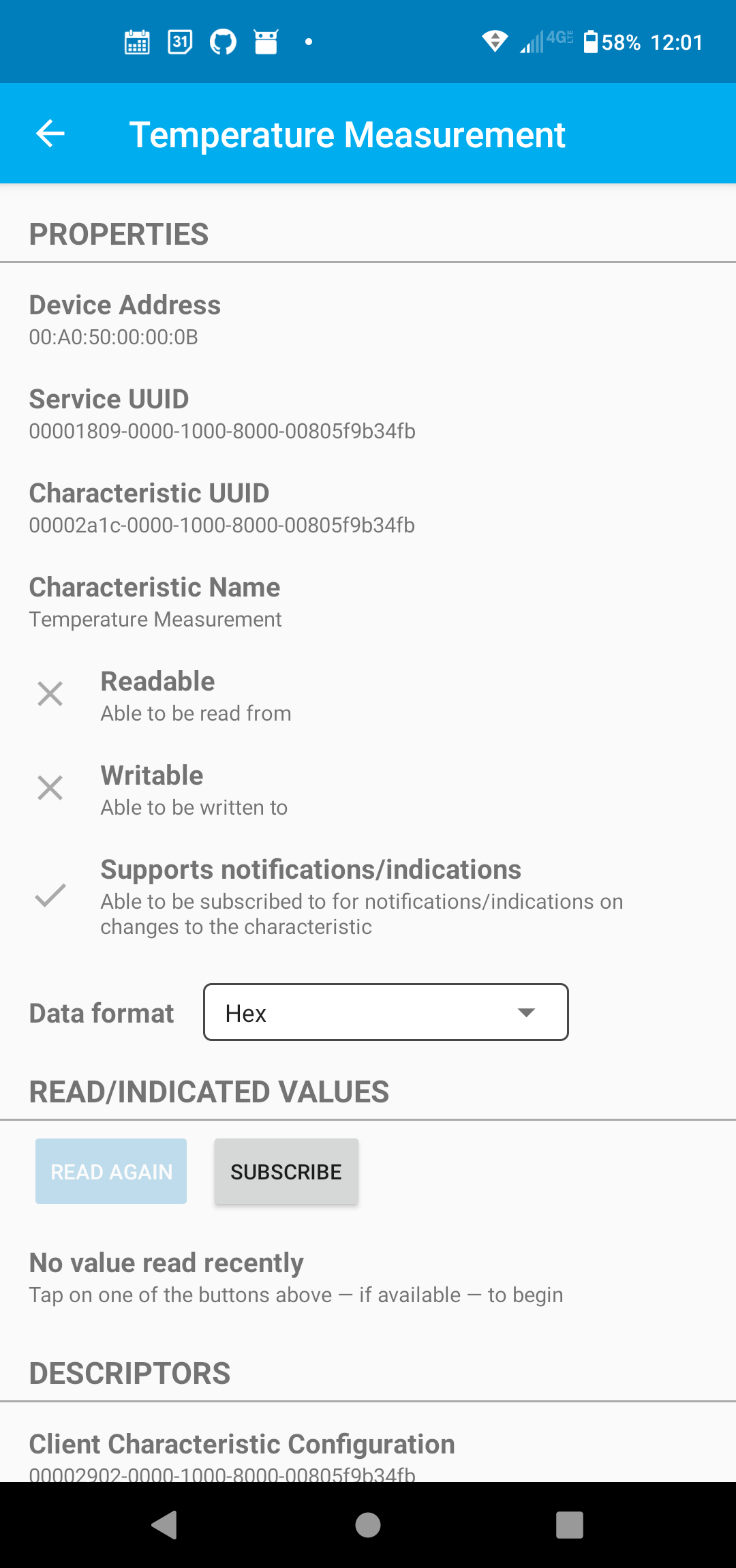 Subscribe
A stream of values will incrementally stream to your device. Click unsubscribe to stop.
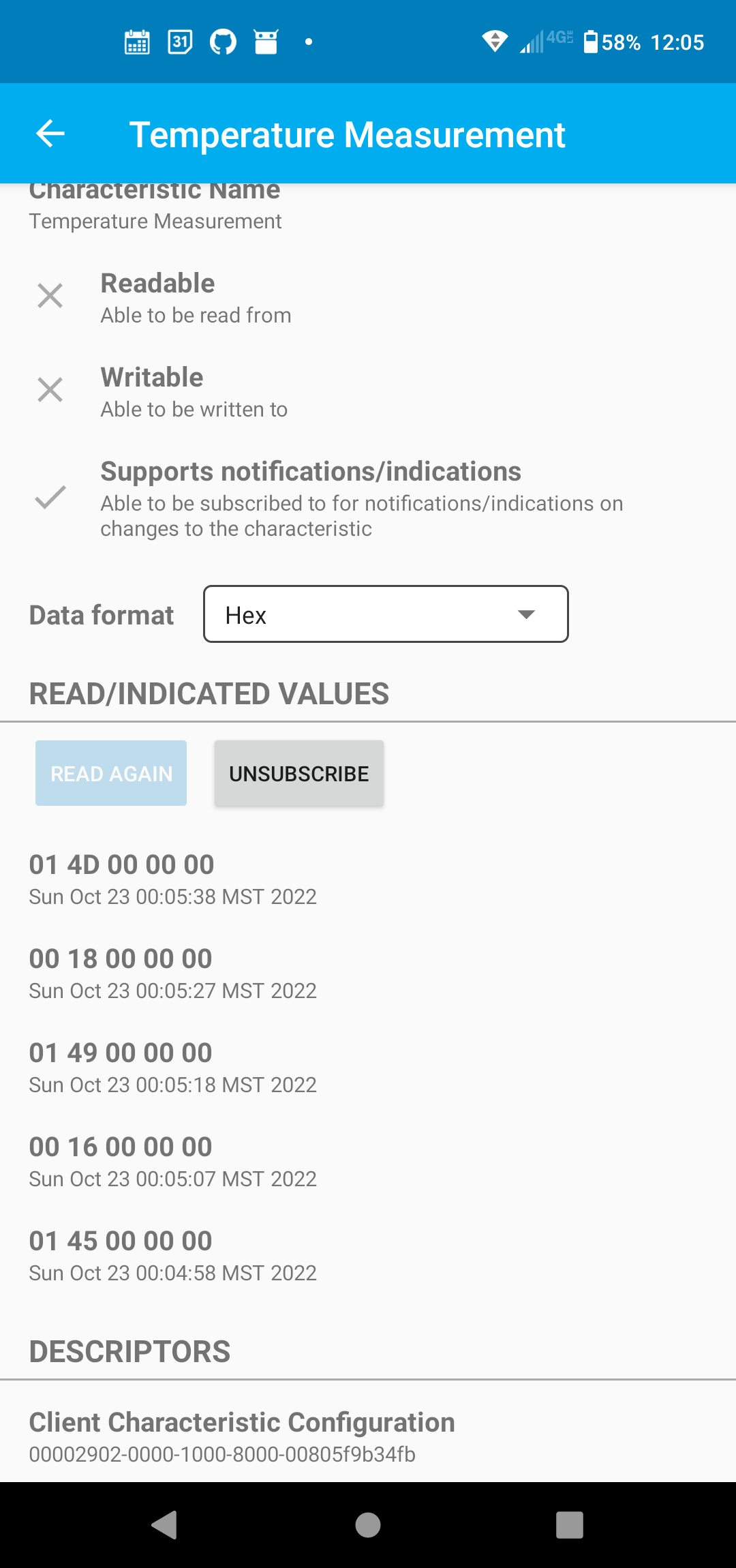 Image
Image