Keeping a Schematic Tidy in KiCad
Introduction
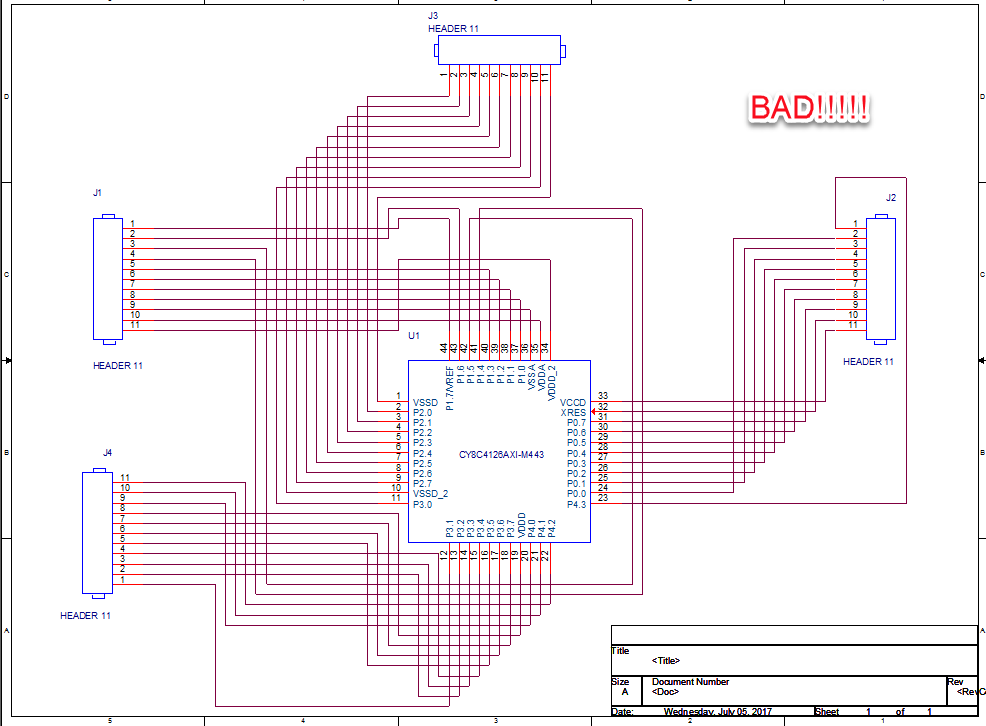
When drawing a schematic, crossing wires can make the design difficult to read and follow signals (see example, Figure 1). This tutorial covers several KiCad-specific techniques for keeping your schematic clean and readable.
 |
|---|
Figure 1: Example of difficult-to-follow schematic |
How do I keep my schematic tidy?
Technique 1: Lay out parts to avoid crossing wires
Arrange components logically (e.g., inputs on the left, outputs on the right, power at the top, ground at the bottom). Use KiCad keyboard shortcuts to orient parts neatly before wiring:
R: Rotate symbolX: Flip horizontallyY: Flip vertically
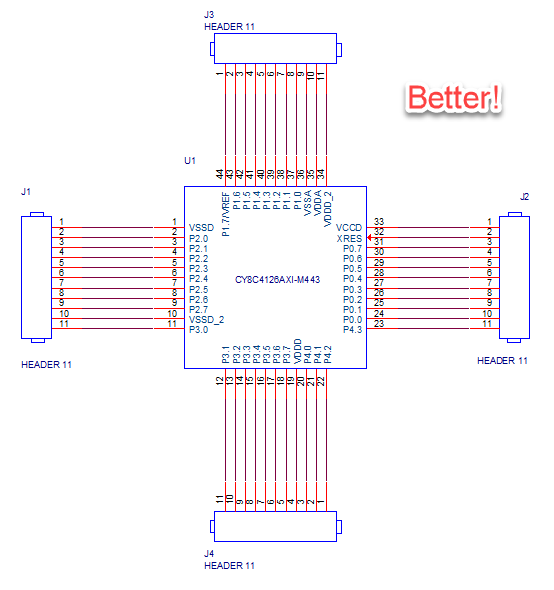
If necessary, you can also edit or customize a schematic symbol’s pin arrangement in the Symbol Editor to prevent crisscrossing wires (see Figure 2).
 |
|---|
Figure 2: Schematic symbol edited to avoid crossing wires |
Technique 2: Use Net Labels
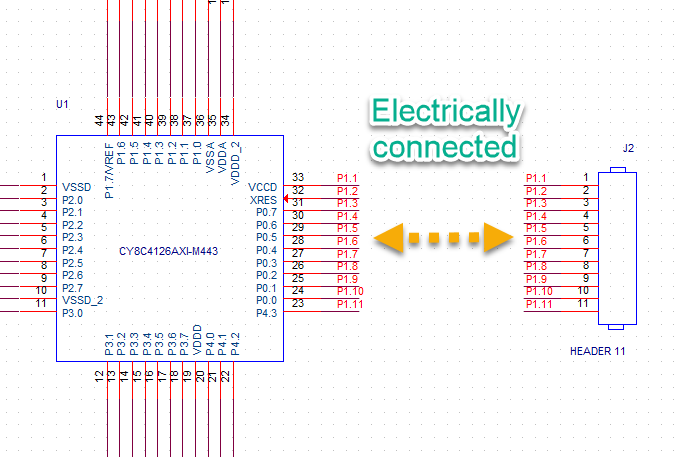
Instead of running long wires across your schematic canvas, use Net Labels to make wireless electrical connections. In KiCad, any nets or wires given the exact same net name are automatically connected electrically.
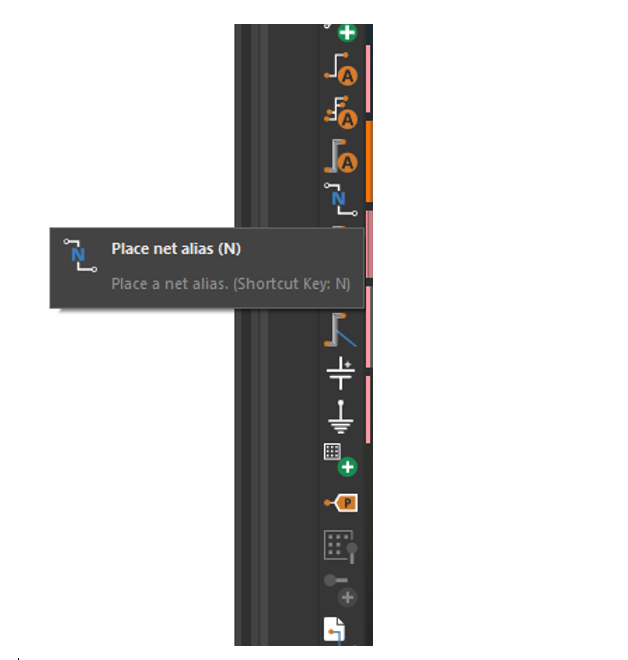
- Press
Lto open the Add Net Label tool. - Type a descriptive name (e.g.,
V_BUS,RESET, orSPI_SCK) and place it directly on a wire or pin.
 |
|---|
Figure 3: Place net label tool |
 |
|---|
Figure 4: Schematic using net labels |
Technique 3: Use Hierarchical Sheets (Multi-Page Schematics)
For larger circuits, break your design into modular sub-circuits using Hierarchical Sheets (S).
To connect signals across different sheet pages in KiCad:
- Use Hierarchical Labels (
H) alongside Sheet Pins to pass signals between parent and child sheets. - Use Global Labels (
Ctrl+L) for signals (like power rails or system resets) that need to be accessible across all sheets in the project.
Technique 4: Section Boxes, Text Notes, and Title Blocks
An excellent way to improve readability is to visually group functional blocks using graphic shapes and text annotations:
- Draw Shapes: Use the Draw Graphic Rectangle or Draw Graphic Lines tools on the right toolbar to outline distinct sub-circuits (e.g., Power Supply, Microcontroller, Motor Driver).
- Add Text Labels: Press
Tto add clear section titles inside or above your bounding boxes. - Complete the Title Block: Go to File > Page Settings to fill in the Title, Revision, Company/Author, and Date. This automatically populates the schematic frame in the bottom-right corner of your PDF export.
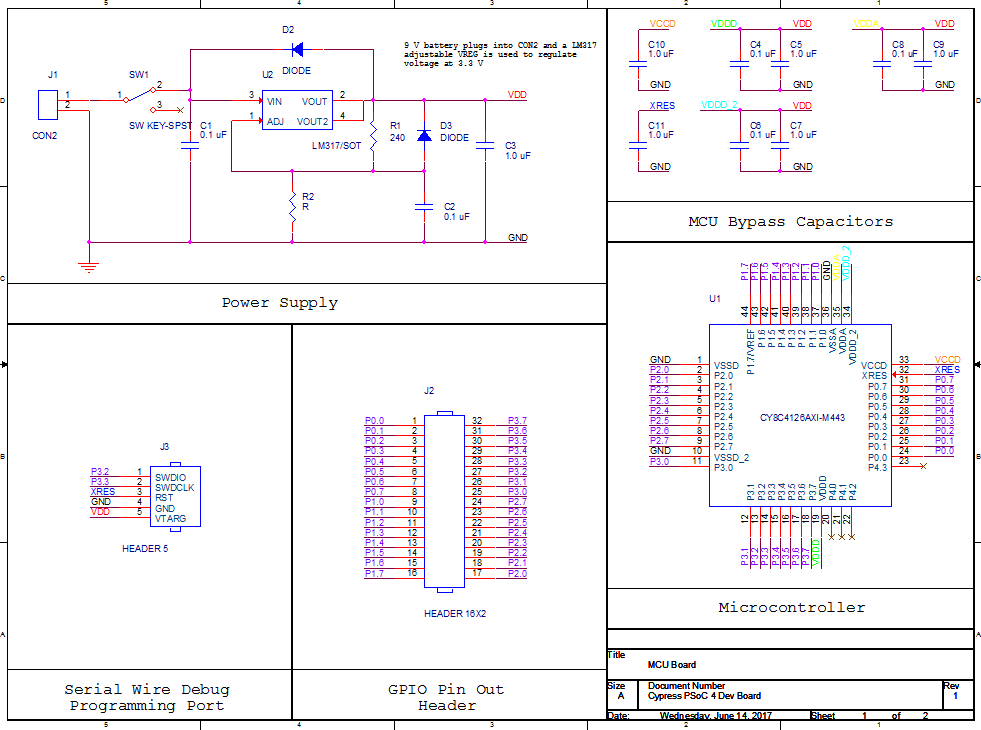 |
|---|
Figure 5: Example schematic with sections and labels |
Based on a tutorial written by Robert Goby. Updated by Zachary Conley and Vivek T.